

Your images are slowing your site down: the fix in one operation
By AIFORYA — 10 July 2026 — 6 min read
On this page (8)
Beautiful photos, and a site that drags
You took care over your images. Real photos, sharp, taken with a good camera or a recent phone. That's exactly the right thing to do.
And ever since, your site takes longer to appear — especially on phones, especially away from wifi.
This isn't a choice between "good-looking" and "fast". You can keep your photos and remove the slowdown, and it costs nothing.
The cause: the visitor downloads the whole image, whatever size it appears on screen
A photo straight out of a recent camera or phone is enormous — far larger than any screen can display. It's made to be printed at large format or cropped without losing detail.
On your site, that same photo will be shown in a block a few centimetres wide. But here's the point almost nobody knows: the visitor downloads the entire file anyway, at its original size. It's their browser that shrinks it afterwards, once it has arrived.
Put another way, you're sending them a large-format poster so they can look at it the size of a postage stamp — and they pay to have the poster shipped.
On a computer with a good connection, it goes almost unnoticed. On a phone on mobile data on a train, that's where it shows.
The fix: two steps, in this order
1. Resize before uploading to the site
This is the step that settles most of the problem, and it's free.
Before putting a photo on your site, reduce its width. Around 1,600 pixels wide is more than enough for an image shown full width on a site — and it's still generous for a photo placed inside an article.
How to do it, without installing anything:
- On Mac: open the photo with Preview, Tools menu → Adjust Size, then save.
- On Windows: open the photo with Photos, Resize button, choose a custom width.
- On a phone: most gallery apps offer resizing at the moment of sharing.
The word "pixels" sounds technical, but it doesn't stand for anything complicated: it's simply the number of dots that make up the width of the image. The more there are, the heavier the file.
2. Convert to WebP or AVIF
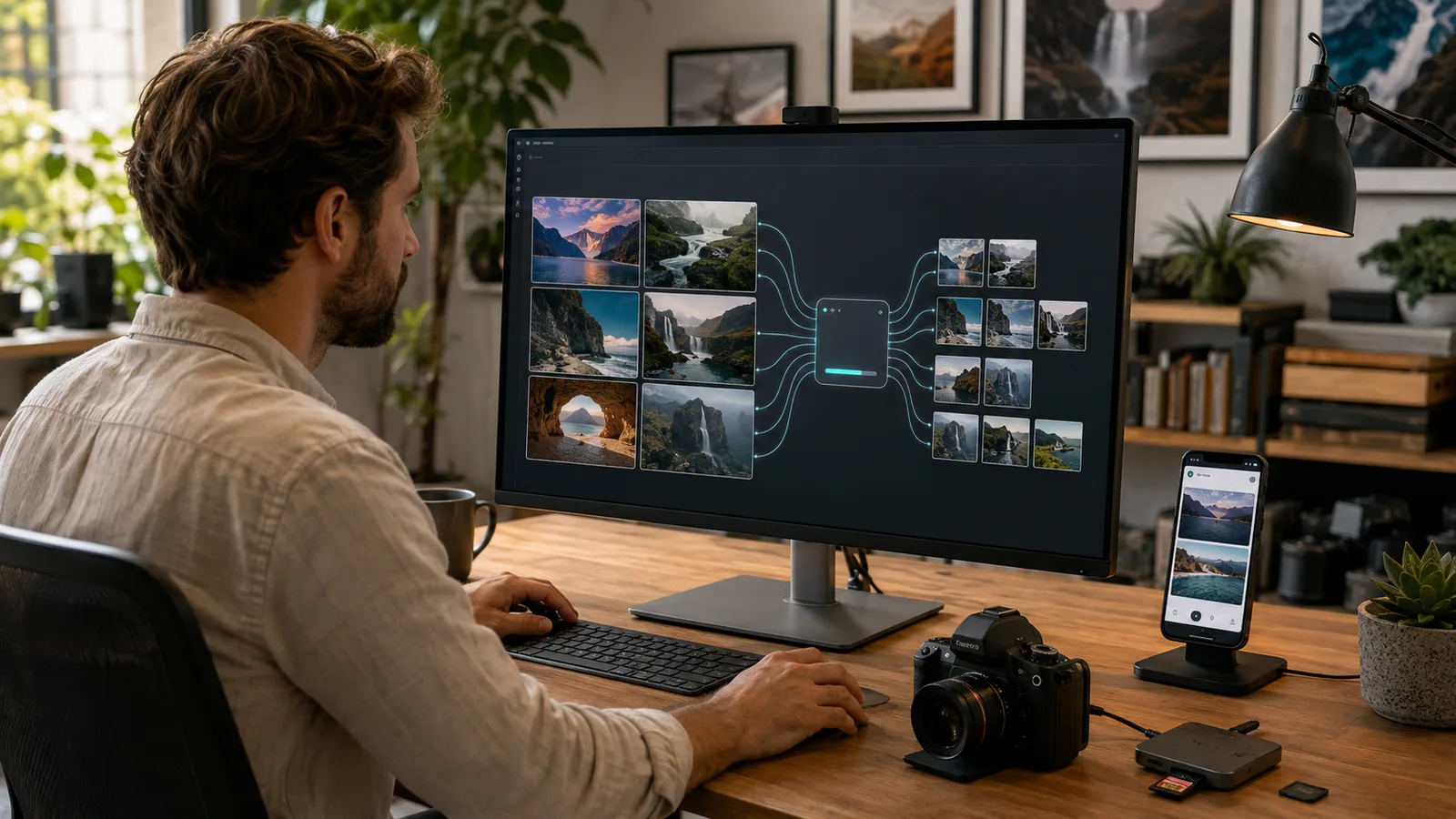
WebP and AVIF are two image formats more recent than JPEG. They store information more efficiently: at equivalent visual quality, the file is markedly lighter. All modern browsers understand them — your visitors have nothing to do, nothing to install, and will see no difference on screen.
This isn't an exotic setting: it has become the normal format of the web.
And what about photos already online?
Don't redo everything. Start with the pages that count: the home page, the page that receives the most visitors, the ones you're proudest of. A handful of well-treated pages changes the general feel; a complete overhaul of the media library is discouraging and doesn't bring much more.
The detail that always gets skipped
When you re-upload an image, take thirty seconds to fill in its alternative text — the short description WordPress asks for in the media library. It serves two purposes at once: people browsing with a screen reader hear it in place of the image, and search engines use it to understand what it shows. It's the most rewarding step of the lot, and the most often skipped.
If you'd rather not do it by hand
AIFORYA Image SEO is a free extension that handles conversion to WebP and AVIF, cropping to social network formats, watermarking, and schema.org structured data — with no configuration and no external service.